 ImgsGen
At a glance
Select a saved image and choose Use as reference, or upload a PNG, JPEG or WebP. Choose a reference-capable GPT Image model, describe what to keep and what to change, then inspect the result.
Choose the original picture
Open a work from history and use it as a reference, or upload your own PNG, JPEG or WebP. The upload limit is 32 MB. Only use material that you have permission to edit. Select a supported model before describing the revision.
Separate what stays from what changes
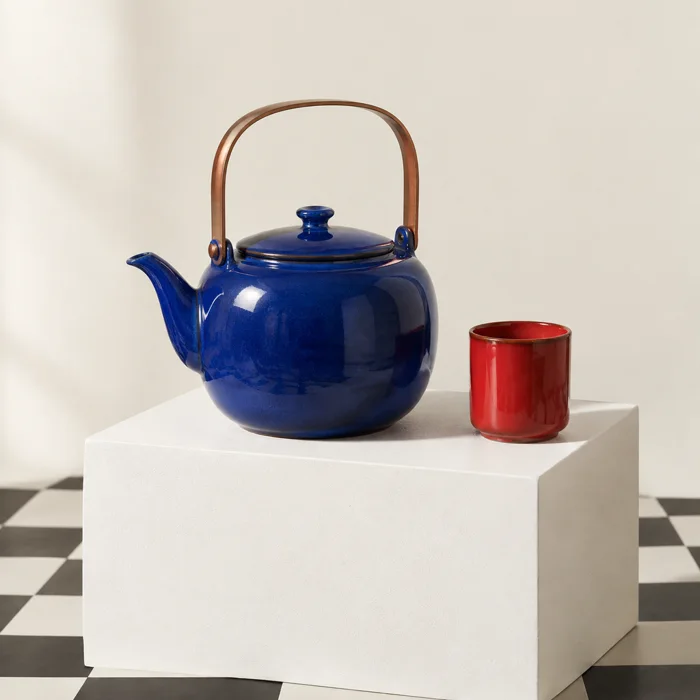
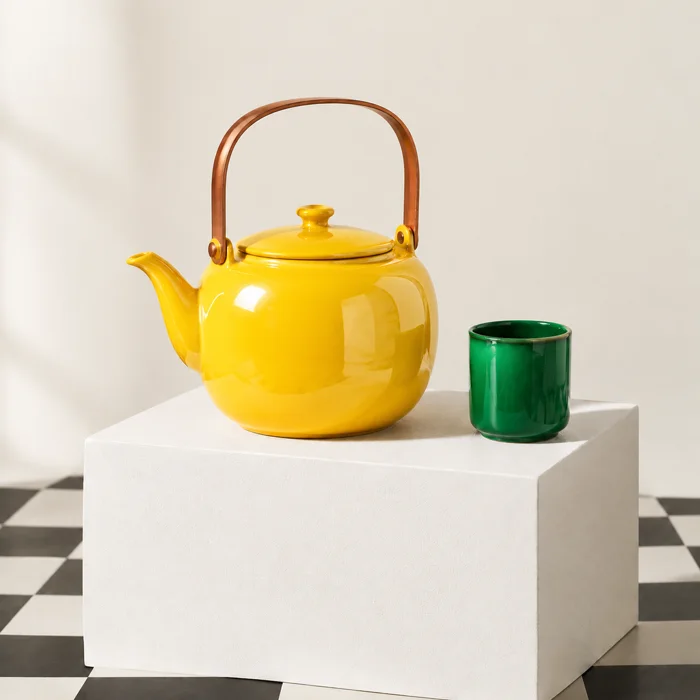
Example: Keep the tabletop view, cup position and background. Change the blue teapot to yellow and the red cup to green. This makes your intention clearer than requesting a completely different scene. It does not guarantee that every unchanged pixel will be preserved.
Understand the difference from prompt reuse
Prompt reuse copies the written description. Reference editing sends an image as well. Use reference editing for visual continuity, while checking that the subject, proportions and composition remain suitable. History itself is not automatically included in a new request.
Check which models support editing
Reference-image editing is currently available with supported GPT Image models. Gemini and Grok reference editing are not enabled in this studio. Switch to GPT Image when the reference control is unavailable.
Keep an original and inspect each revision
Download a copy before making further changes. If an edit moves too far from your intention, return to an earlier picture rather than repeatedly editing an unsuitable result. Check lettering, object edges and subject details before delivery.
A prompt to start with
Keep the tabletop view, cup position and background. Change the blue teapot to yellow and the red cup to green.
Bring the idea to your canvas.
Choose a supported model and composition. The studio uses an ImgsGen account and subscription credits.
Open image studio ↗